How to prepare your tick data for Metatrader 4

If you’re reading this guide, I will assume you already downloaded your tick data either from one of the free sources mentioned on the Downloading free tick data page or from your own private source and now you need to use it in Metatrader 4.

Converting the data

To put it simply, Metatrader 4 does not know how to directly read a CSV file containing tick data and thus it cannot use it in your backtests. However, what it can read is a proprietary file format that contains ticks so all we have to do is convert from our CSV file to FXT, the latter being the format I mentioned. To this end, I wrote a few scripts but later decided to make it less complicated and merged them into a single script that should be able to convert data from pretty much any source and put it into an FXT. One thing to note is that during backtesting, Metatrader 4 also makes use of the HST files when calculating the indicators so in order to have accurate tick data backtesting, you must also have HST files that match your FXT file.

So, what you need to convert is the CSV2FXT binaries that can be found in the tick data downloads section. This script has been compiled with MT4 build 225 to ensure it works on a wide range of MT4 builds.

Finally, here’s a short guide on how to convert the tick data to an FXT file and a series of HST files:

  1. If you haven’t done so already, you have to head to the tick data downloads section and download the CSV2FXT binaries archive.
  2. Copy the files from the zip archive to your MT4 installation folder. There’s a directory structure inside, make sure they land in the proper places (CSV2FXT.mq4 and CSV2FXT.ex4 must be in experts\scripts, FXTHeader.mqh must be in experts\include, CsvReader.dll must be in experts\libraries). Also make sure that you are copying them to the correct folder if you have multiple MT4 installations on your system.
  3. Move the tick data file (the CSV file) to experts\files in the same MT4 installation folder.
  4. Open a chart for the pair that you have data for (if you have an EURUSD.csv file, you MUST open an EURUSD chart).
  5. Select the timeframe that you wish to generate the FXT for. For instance, if you want to backtest on M1, then select M1 as the chart timeframe. Please note that the FXT file that you create for a particular timeframe (even M1) will NOT work for any other timeframe; you simply have to generate a new FXT if you want to backtest on another timeframe.
  6. Ensure that your terminal is connected to the broker (look in the lower right corner, if it says “not connected” you need to fix that before proceeding).
  7. Make sure that DLL calls are allowed. If you don’t know how to do that, you have to open the Tools menu, select Options, select Expert Advisors and ensure that Allow DLL imports is enabled while Confirm DLL function calls is disabled.
  8. Double click the CSV2FXT script in the navigation panel (it’s in the scripts section).
  9. Configure the parameters in the window that pops up.
    • CSV2FXT_version – this is a parameter that is only meant to give you a quick indication of what version you have installed. Changing it has no effect.
    • CsvFile – you can leave this blank if the file is named just like the symbol and has a CSV extension (e.g. EURUSD.csv); otherwise, just type the file name.
    • CreateHst – this setting must be true in order to create the HST files that you need for your backtest. You can set it to false if you already generated HST files for the symbol with the same GMT/DST settings and you’re just generating an FXT for a different timeframe. You must create new HST files every time you change the GMT or DST.
      Note: Enabling this setting will create HST files for the whole time span of your tick data file regardless of the time range selected.
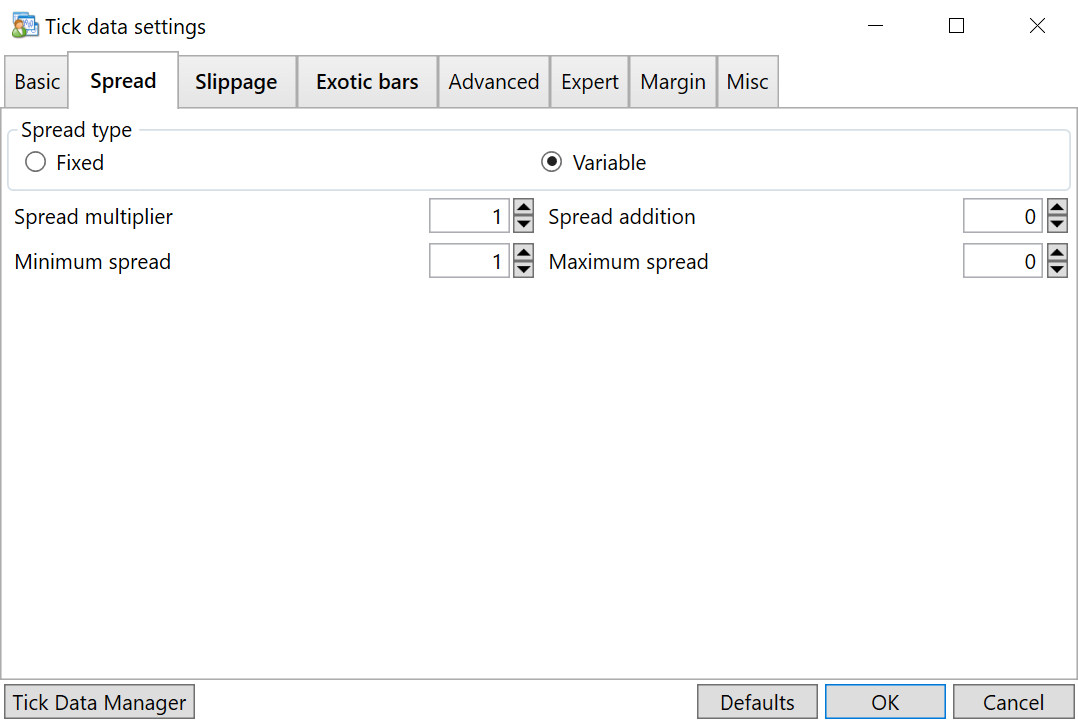
    • Spread – the fixed spread of your resulting FXT file, expressed in pips (2.3 will result in a 2.3 pips spread). Leaving it set to the default of 0.0 will make the converter use the current spread of your broker. Please pay attention to the fact that many brokers are widening their spreads during the weekends.
      If you intend to use real spread (the variable spread in your CSV), you can leave this parameter set to 0.0.
    • StartDate and EndDate – these fields control the time span of the FXT file. The format of the StartDate and EndDate fields is YYYY.MM.DD. You can leave these fields blank, in which case the converter will just use the earliest, respectively the latest date available in the CSV file.
    • UseRealSpread – as its name suggests, enabling this parameter will make your resulting FXT use the real (variable) spread from your CSV file.
      If using the loader script, you MUST enable real spread when running it to be able to use such FXT files. The Tick Data Suite will autodetect whether your FXT is using real spread or not so there’s nothing to worry about if you’re using that.
    • SpreadPadding – if using real spread, you can pad it by a given number of pips – if you want to pad it by 0.8 pips, just specify 0.8 here.
    • PipsCommission – if you want your resulted FXT to have a commission, you can configure the desired value here. The figure is round-trip and it is expressed in pips.
    • MoneyCommission – as an alternative to having the commission in pips, you can also set the commission in money. The value is expressed in base account currency per lot.
    • Leverage – changes the leverage of your FXT.
    • FXTGMTOffset – if you want your FXT to have a GMT offset other than 0, specify it here.
    • CSVGMTOffset – the GMT offset of the data in your CSV file. The conversion script is able to autodetect the formats of several free tick data providers and apply the correct setting here, so it’s probably safe to leave it set to “autodetect”. If you get a message in the experts log about the script not being able to identify your tick data source, you can set the CSV GMT offset here manually.
    • FXTDST – the DST setting of your FXT. Type 0 for no DST, 1 for US DST, 2 for European DST. Note that the US DST setting calculates the DST according to the regulations that were applied starting with 2007.
    • CSVDST – the DST setting of your CSV. Should be safe to leave it to “autodetect”. Otherwise, use the same guidelines as for the FXTDST.
    • TimeShift – Enabling this parameter will shift all the generated data 28 years in the past. This is intended for use with EAs that are suspect of having hardcoded days for the purpose of cheating backtesting. The reason behind the 28 year shift is that the calendar is identical when it comes to the days of the week and leap years. This is not a foolproof method and some EAs may have legitimate reasons to yield different results when backtested with a shifted time.
    • CreateM1, CreateM5, CreateM15, CreateM30, CreateH1, CreateH4, CreateD1, CreateW1, CreateMN – These parameters are meant to allow you to create multiple FXT files in a single run. By default, the script will create the FXT for the timeframe of the chart you are running it on, no matter if the parameter for that specific timeframe is enabled or not. Only enable these parameters if you actually need the FXT for a different timeframe.
  10. Click “Ok”. Once you do that, the data generation process will start and it will typically take 20 to 45 minutes, depending on the data range and volume, possibly even more if you’re using a slow machine. A progress indicator will appear in the upper left side of your chart and when the processing is finished, you will get an alert. During the conversion, some data is being printed in the experts log and if you have any problems with the script it’s probably a good idea to keep an eye on that.

Once you’re done with all the steps above and the script finishes processing, you will be asked whether you want the script to move the files to their proper locations. If you choose Yes, restart the terminal to ensure the HST files are properly synchronized and skip to the next guide (Using the tick data in your backtests). If you choose No, you will have an FXT file and a bunch of HST files in your experts\files folder and before actually using them, you need to copy them in the correct location. Proceed with the following steps:

  1. Exit the Metatrader 4 terminal.
  2. Move all .HST files from experts\files to history\[your_server_name].
    Pay very close attention if you have multiple server directories in your history folder – you will have to move them into the one that’s correct for active account!
  3. Move the generated FXT file from experts\files to tester\history.

At this point, you’re done with the conversion and setup! You’re now ready to proceed to backtesting, but please note that it’s not as easy as clicking Start in the backtesting user interface. You will have to use some additional tools which are described in the Using the tick data in your backtests section.

If you run into any problems, please head to the FAQ & Troubleshooting page.

  • #249 written by Lee May 8, 2013 (1 month ago)

    Hi Birt, I have the same error as “hcthva”

    Possible error: gap after 2008.08.08 07:07:42(4.0hours) I have 5 of these errors. What do the mean and how do I fix them?
    Do the need to be fixed?

    Thanks Lee

    • #250 written by birt May 8, 2013 (1 month ago)

      They are holes in the data; basically the data for those 4 hours is missing. The typical impact of such a gap is minimal. Unfortunately, you can’t really fix these issues.

  • #251 written by Lee May 10, 2013 (1 month ago)

    Thanks Birt that’s all I need to know.
    By the way it took awhile to get every thing running but damn! I love the Tick Data Suite.

  • #252 written by Jelks May 12, 2013 (1 month ago)

    Hi Birt!

    On April 1st, I downloaded via Alpari-US JForex the Dukascopy CSV tick data starting with Jan. 1, 2011, then I converted that using TDS with the settings file I’ve always used for such conversions. The EA I have been testing is not for sale by the author, I am just the tester for him. The results were pretty phenomenal, a $100K starting balance on Jan. 1, 2011 backtested to April 1, 2013 resulted — after some optimizing — in a $40+ million net profit. It runs on the M1 time frame on the EURUSD. As always, 99% modelling quality and 0 mismatched chart errors.

    This last Wednesday, the author needed a backtest for just April, 2013. I didn’t have this data, so I downloaded the whole period again, but this time through May 8th. I ran his requested April test. Not too bad, $20K+ (always using the $100K starting balance).

    But then I re-ran the formerly tested 27-month period (1/1/2011 – 4/1/2013) on this new data. The net was down to $6+ million. Not bad at all, but nowhere near the $40+ million we had been seeing before.

    So the next day, I downloaded the whole thing again, this time through Thursday, May 9th. After running the same backtest, same settings, same everything, the net was now down to $1.2 mil. Things were going downhill…

    Hmm, could this maybe be a file size issue of some sort? So I did one final download, but set the end date of the tick data download to April 1st (I was trying to recreate the earlier “$40+ mil” environment I had been testing under). Did the usual TDS conversion and ran the usual 27-month test. The net was now down to $869,554!

    After some mulling and hair-pulling, I just re-ran CSV2FXT again on the May 9th CSV file. Since I thought there was a possibility there was a spread issue (and also because it’s the weekend, so we don’t want to have the “Spread” input set to 0 and thus use the broker’s humongous weekend spreads), I set the Spread input to 1.8 — slightly higher than Alpari’s claimed “typical spread” of 1.6 for the EURUSD. I then ran the usual backtest. The net is now back up to $2.16 mil.

    So we have one 27-month backtest (1/1/2011 – 4/1/2013), and depending on the data set I’m using, the results vary *wildly* — from $40+ mil, to $6+ mil, to $1.2 mil, to $869,554, and finally (after “hard-coding” a Spread of 1.8 into it), back up to $2.16 mil.

    Can you explain what could possibly be going on? The EA was totally consistent as long as we were using the same data set. So I can only think that the problem lies with:

    a) the Alpari-US JForex/Dukascopy tick data is inconsistent (Alpari-US tells me that’s not possible),
    b) CSV2FXT has variables I’m not aware of (remember, I’m using the same settings file each time, with only the CSV file name changing), or
    c) broker spread issues (but even if that’s the case, how could there be *that* much variation)

    Many thanks,

    Jelks

    • #253 written by birt May 12, 2013 (1 month ago)

      It’s most likely the spread, especially if the EA is only taking a few pips profit at a time. You could try creating several different FXT files (one for each data set you have) while making sure the spread is set to the same value for each of them (not 0… 1.8 is a good test value). Then, you can backtest using each FXT while enabling Use Date and setting a date range covered by all FXT files – the results should be identical.

  • #254 written by Jelks May 12, 2013 (1 month ago)

    You nailed it Birt! The problem was the spread. Now, whatever non-zero value I set the Spread input to when I run CSV2FXT, the results are 100% identical — no matter which CSV file I select to convert.

    And if I set the Spread input to 1.8, the net is $2,783,626. At 1.6, the net is $5,779,854. At 0.5, the net is $72,778,583.

    So it looks like when we were getting the $45+ mil results, the spread must have been really tight — 1.0 or something like that. And when I was only getting the $800K+, the spread must have been much higher, say 2.5.

    But I’m just now starting to pay attention to UseRealSpread. This says, “Use the historical spread stored in the CSV”, right? If so, why does it default to false since backtesting is by its very nature historical?

    • #255 written by birt May 12, 2013 (1 month ago)

      It defaults to false for backward compatibility reasons. Might change it to default to true in a future version.

  • #256 written by John May 13, 2013 (1 month ago)

    Hi Birt,

    Several weeks ago I downloaded the trial version of data suite with no functionality problems. Now that I’ve purchased the suite its telling me I need to download a newer version, I clicked “yes” but nothing happened. Now every time I open suite it tells me that I’m using “a Metatrader 4 build that is not supported by your current Tick Data Suite version.”

    I’ve searched your site for the latest suite download with no luck. Please advise, thanks!

    • #257 written by birt May 14, 2013 (1 month ago)

      Strage… it sounds like there’s a problem with your autoupdate. Please update it using the installer which can be found at http://eareview.net/tick-data/downloads (it’s the Downloads section in the tick data menu at the top :) ).

  • #258 written by Will May 21, 2013 (4 weeks ago)

    There is some very strange goings on with the CSV2FXT commission on trueFX data, drop the spread down low and the commission rises but not quite as much to push it as high as real spread. Try it out, on AUDNZD with 0.2 spread you get 1.3 commission but put in 2.0 spread and you get 0.5 pips commission. Am I correcting in thinking that the commission will work the same way as spread padding? it just adds to the spread, it doesn’t calculate how many lots you have traded and deduct from finishing balance?

    • #259 written by birt May 21, 2013 (4 weeks ago)

      No, I’m afraid you’re entirely wrong. The commission is completely separated and has nothing to do with the spread. The commission is the value that you specify in one of the commission settings in CSV2FXT and if you print OrderCommission() in the log or on the chart, you will be able to see that it has nothing to do with the spread – as long as the commission you configure is the same, it’ll print the same thing no matter the spread. Note that OrderCommission() only returns a value after an order was closed.

      There’s a catch with commissions, though – they’re always using the base currency of your backtest even if you have a different account currency. So if you configure a commission of 7 EUR and then you test using USD as base currency, you will have a 7 USD commission.

  • #260 written by Will May 21, 2013 (4 weeks ago)

    I am logging spread on histogram while visualy backtesting and its variable even tho I selected a fixed spread in the CSV2FXT spread, I cant work this out. Never had 2 such different set of results between fixed and real spread. One isn’t far of holy grail and then others a consistent loser, its that that much of a tight scalper either. lost on this one right now

    • #261 written by birt May 21, 2013 (4 weeks ago)

      If it’s variable, it must be a real spread FXT. It can’t become variable if you didn’t select that option. Perhaps you’re using an FXT that you created a while ago or something like that. The CSV2FXT script simply can’t create a variable spread FXT unless RealSpread is enabled.

    • #262 written by birt May 21, 2013 (4 weeks ago)

      By the way, RealSpread overrides the Spread value that you select. So if you set Spread to e.g. 1.5 and enable RealSpread, the latter will take precedence and your configured fixed spread will be disregarded.

  • #263 written by Will May 21, 2013 (4 weeks ago)

    no honestly birt ive made like 5 new FXT and history files and delete the old ones everytime, the realspread is false and fixed is 1.4 and 0 commisiion and histogram is logging variable spreads, only with this truefx data

  • #264 written by Will May 21, 2013 (4 weeks ago)

    “FXTHeader.mqh must be in experts\include” DOH, haven’t got this for some reason must of forgot when I swapped to a different MT4. Is that my problem

    • #265 written by birt May 21, 2013 (4 weeks ago)

      Nope, that shouldn’t have any effect unless you want to recompile CSV2FXT.

      I would look at the histogram thing that you are using.

      Just make an EA that has in its start() function:

      Comment(“Spread: ” + DoubleToStr(Ask – Bid, Digits));

      And backtest it in visual mode, see what comes up. If you selected 1.4, it should be constant 1.4.

      • #266 written by Will May 21, 2013 (4 weeks ago)

        Nope. used latest CSV2FXT and CSVreader, delete all server history and tester files for AUDNZD, made new FXT and the spread is still variable even tho variable is false. Been backtesting 24/7 for going a month now and always check the spread and ive not had this before. Sure it might not be the layout in the CSV? Beats me

        • #267 written by birt May 21, 2013 (4 weeks ago)

          I’m pretty sure, yeah.

          Did you try the Comment() thing I posted above?

  • #268 written by Will May 21, 2013 (4 weeks ago)

    Yeah I did, did backtest with the new FXT and no commission and the spread is a fair bit higher than my broker most of the time and it running well on that, gona just call it a day on this pair, its good enough. Thanks for your input. Try it yourself one day. Id advise anyone else using this true FX data to be careful, with this data the spread on this pair seems to actually narrow a little where it really widens alot between 9-10 GMT. I didn’t have any choice on this pair but ill stick with dukascopy data now.

    Cheers

    • #269 written by birt May 21, 2013 (4 weeks ago)

      You are definitely doing something wrong. I just tested with AUDNZD truefx 2013 data and the spread is fixed and there’s no commission (which is exactly what I configured in the CSV2FXT parameters).

      I’m not sure what your histogram thingie is, but if it’s some kind of indicator that you’re adding to the visual backtest chart after starting the backtest, you should be aware that its data feed is the server, not the backtest.

  • #270 written by Will May 21, 2013 (4 weeks ago)

    I mean 21-22 GMT, been up 24 hours, im off to kip

  • #271 written by Tony June 2, 2013 (2 weeks ago)

    Hi, I have some questions regarding some settings. What should I set in the following settings if I trade in Germany and the pair that is tried is GBPUSB
    Spread: is this the spread that my broker offers especially for this pair.
    UseRealSpread: Should I set this to true if I test on weekend? Can I set it to false I know the special spread for used pair?
    FXTGMTOffset: Have I set it to “2” (GMT + Berlin, Rome etc…)
    FXTDST: Have I set it to “2” because I trade in Europe.

    I downloaded the tick data with SQ TickDataDownloader. Furthermore I realized that if I create a history file for M5 all other are created too. They all have the same timestamp. Is this correct?

    Thank you in advance and regards,
    Tony

    • #272 written by birt June 5, 2013 (1 week ago)

      Spread: don’t set it to 0 if you’re backtesting over the weekend. Basically, whatever number you use their will be the fixed spread of your resulting FXT. If you write 2.3, it’s going to be 2.3 pips. Only works if UseRealSpread is enabled.

      UseRealSpread: enable this if you want to use the real, variable spread stored in your CSV file. Note that the spreads back in 2007 were much larger than they are today. This setting has nothing to do with the weekend, it simply allows you to use the historically recorded spreads as opposed to testing with a fixed spread.

      FXTGMTOffset & FXTDST: depends on the EA you’re testing. If your EA expects the server to have a DST shift, then it’s a good idea to enable DST. If your EA doesn’t even care about time, just leave both set to 0. There’s no particular need to match the GMT offset of your country or the GMT offset of your broker unless you’re backtesting EAs that run on timeframes H4 or larger (D1, W1) or that have indicators running on these timeframes. If your EA has a GMT offset input that you must set for backtesting, simply leave the FXTGMT set to 0 and also set the EA GMT offset input to 0, while making sure that the DST is what the EA expects.

      Finally, all history files are created because they might be required by indicators running on timeframes other than the one used in your backtest. However, only the FXT for the timeframe(s) you selected are created, which by default means the FXT for the timeframe of the chart you used will be generated.

  • #273 written by Tony June 5, 2013 (1 week ago)

    Hi Birt, thank you for your answer!
    I test an EA which looks in higher timeframes to identify a trend. E.g. the EA runs on M5 chart and identify the trend from m15, m30 and h1 timeframe. The point is, when I set “FXTGMTOffset” and “FXTDST” to 0.0 I lose 50%. When I set “FXTGMTOffset” to 3 (I realized that my broker don’t use my country time zone. It is my +1h) and “FXTDST” to 2 I make ca. 100% profit. Unfortunately I’m a beginner and the topic back testing confuses me extremely. Do you have a suggestion or explanation why the profit band is so large of this two options.
    Thx a lot

    • #274 written by birt June 6, 2013 (1 week ago)

      Are you correctly copying the HST files? If you’re not using H4 or above and your EA doesn’t do any GMT-dependent trading, having incorrect HST files is the only potential problem that I can see.

  • You may use these HTML tags: <a> <abbr> <acronym> <b> <blockquote> <cite> <code> <del> <em> <i> <q> <strike> <strong>


  • Comment Feed for this Post
Go to Top