Quick start guide
A quick start guide video is available if you prefer this format. The movie is less than 2 minutes in length, and it is captured at 1080p so we recommend watching it in full screen using HD resolution.
Step 1. Download tick data
After downloading and installing Tick Data Suite v2, start the Tick Data Manager to download or import some tick data.
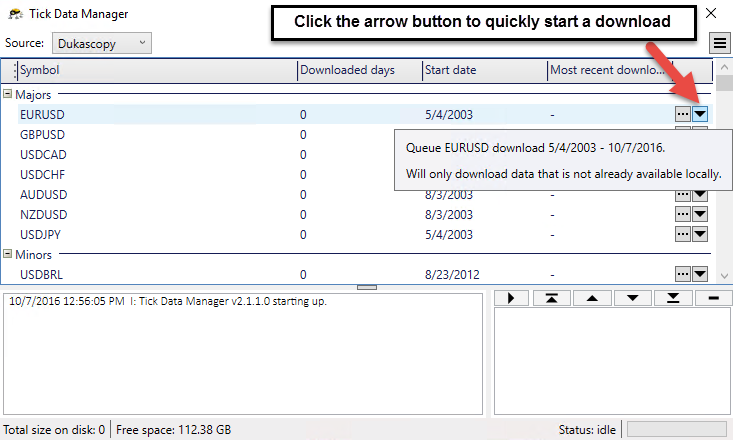
By default, the Tick Data Suite is configured with moderate settings that should not have a major impact on your bandwidth usage or CPU load for a typical PC.
That means you can still do other complex activities while you're downloading data. However, it is possible to increase the download speed at the expense of higher bandwidth usage and higher CPU loads.
Step 2. Backtest using tick data
Select the symbol that you downloaded data for in Step 1 and activate the Use tick data checkbox in the Metatrader 4 backtesting pane.
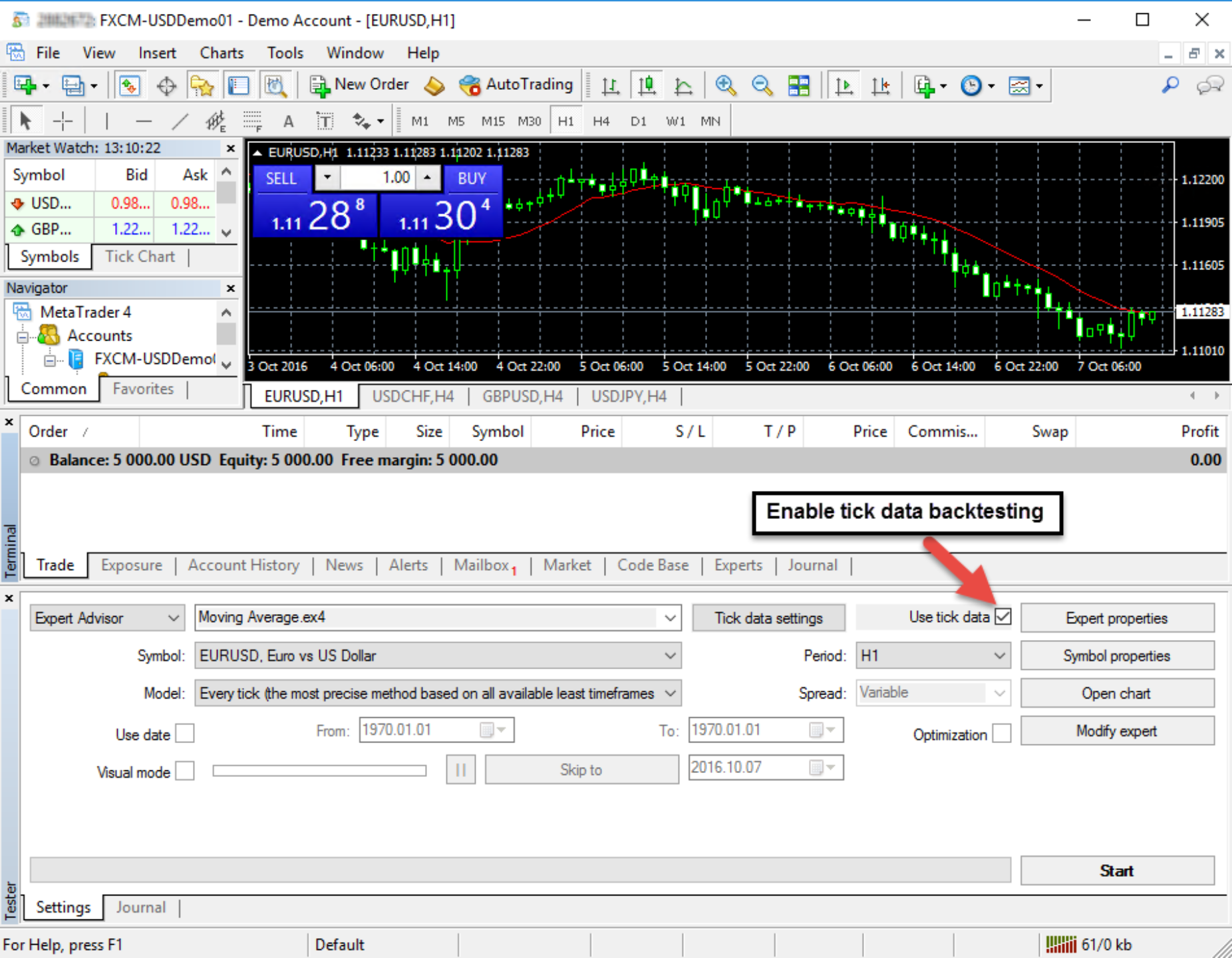
The Tick Data Suite performs the symbol association automatically for Forex symbols, but for other symbol classes (e.g., indices, commodities, stocks, etc.), the naming conventions are not consistent, so an automatic mapping is not possible.
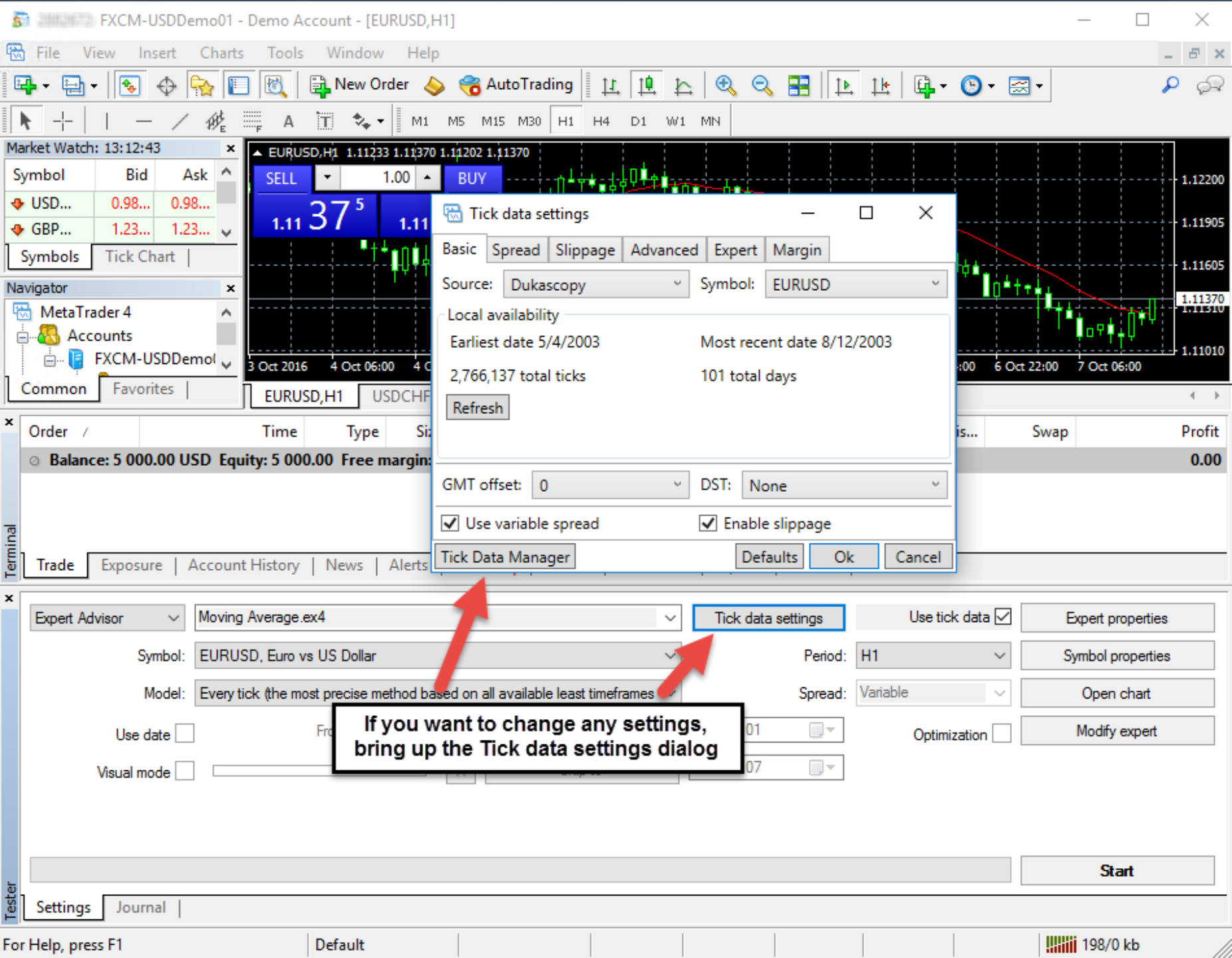
If the Tick Data Suite can't automatically match the symbol you chose in the MT4 backtest pane to a tick data symbol, you will have to choose the tick data symbol yourself. Open the Tick data settings Basic tab and you can either click the arrow and browse the dropdown list or otherwise type a few characters in the search box to search through the list.
If you'd like to change the GMT/DST of your backtest or if you wish to use variable spread, enable slippage or change any of the advanced settings, open the Tick data settings dialog.
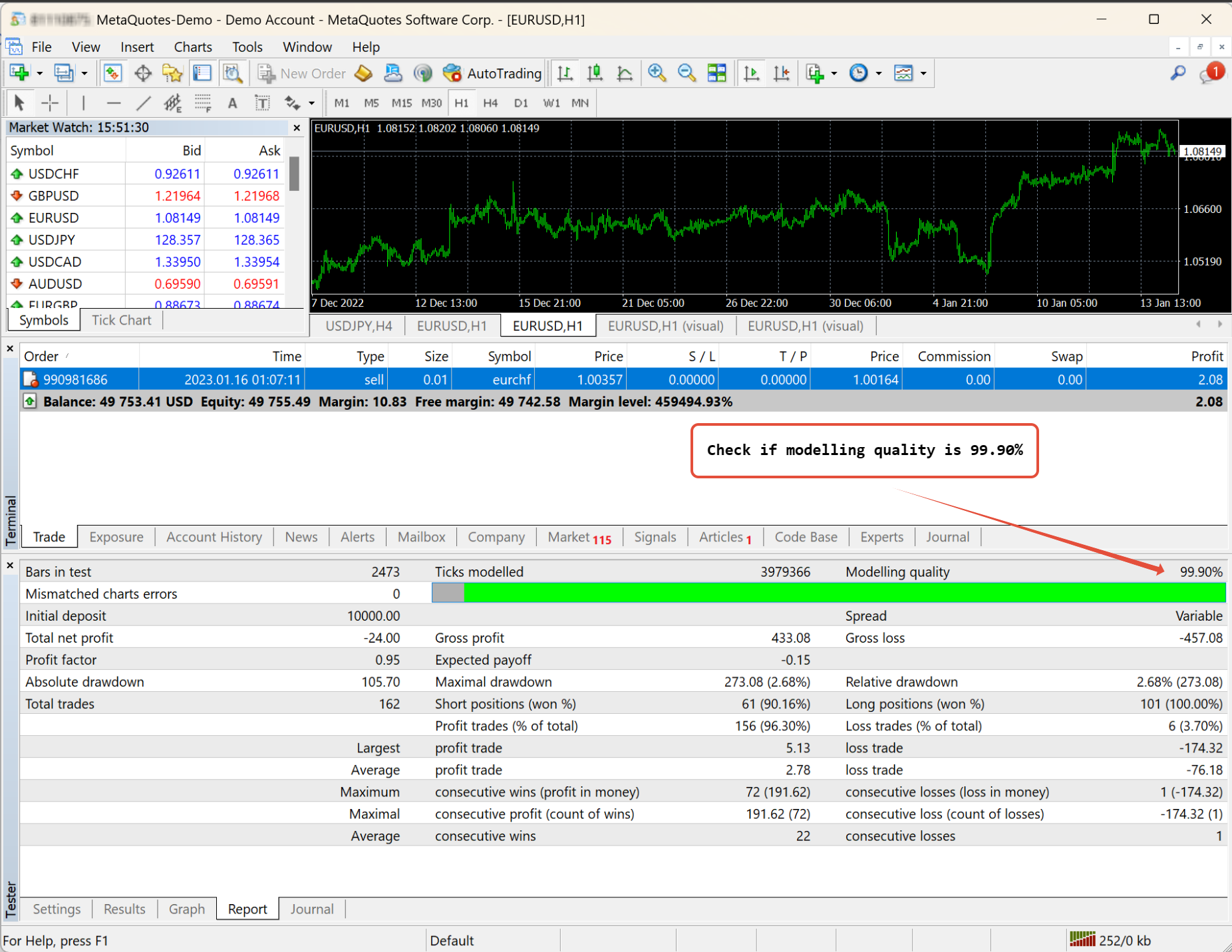
When ready, click the Start button. At the end of the backtest check that you're getting 99% modeling quality and - if enabled - that variable spread was used.
If you run into any problems, the first thing you should check is the Tester journal; you can typically find more information there. We also have an extensive Knowledge Base where you can learn more about using the Tick Data Suite and get help with troubleshooting.
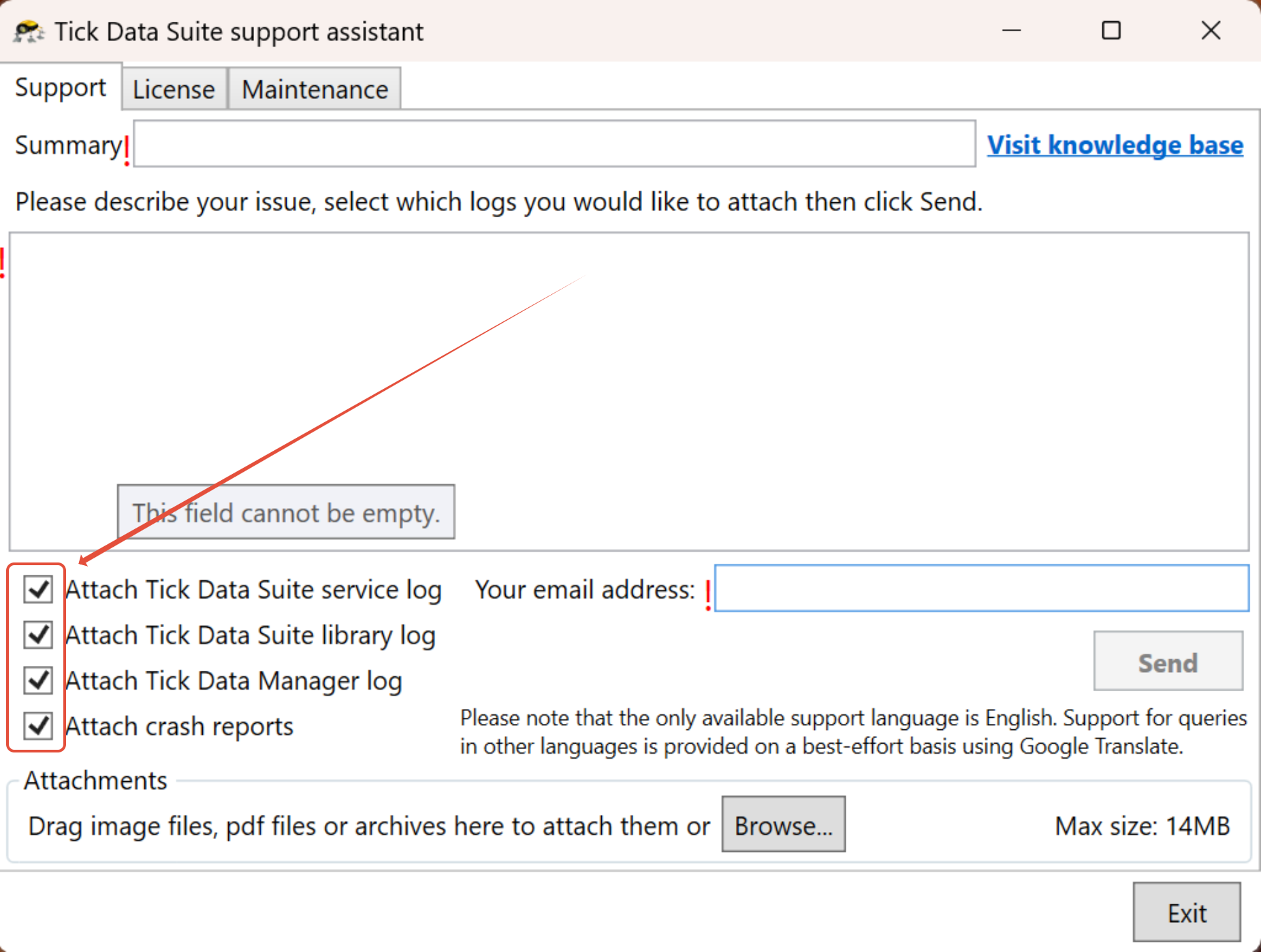
If you need to contact support, please run the Tick Data Suite support assistant (by clicking on Support in the Tick Data Manager menu or from your Start menu) and fill in the problem details, then send the information to create a support ticket. It is typically useful to also include the log files, so you can leave the checkboxes for them enabled.