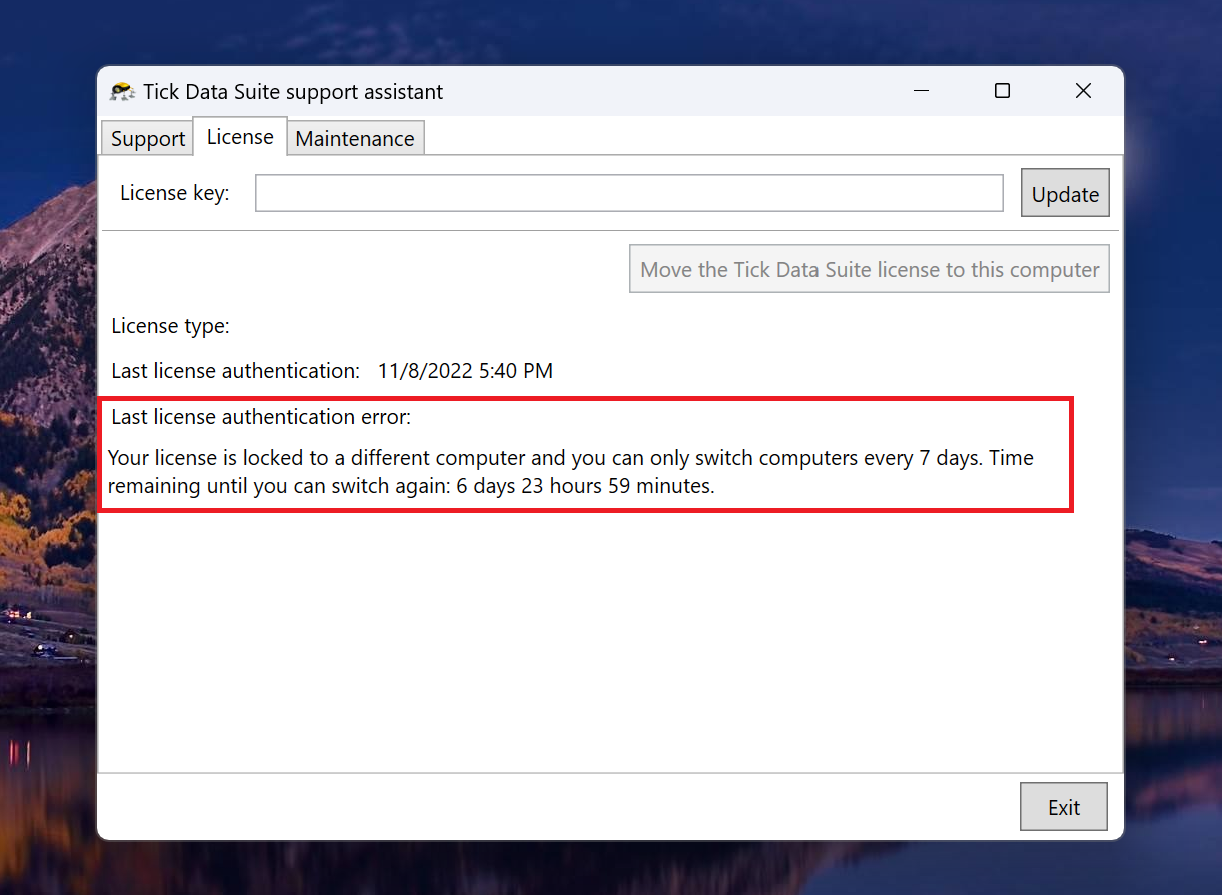
Moving the Tick Data Suite license to a different computer
This article only applies to retail licenses. Trial licenses are permanently locked to the computer that activated them and cannot be moved.
Do you have Tick Data Suite installed on the new computer?
Fresh Installation:
If you do not have Tick Data Suite installed on the new computer, please follow the steps below:
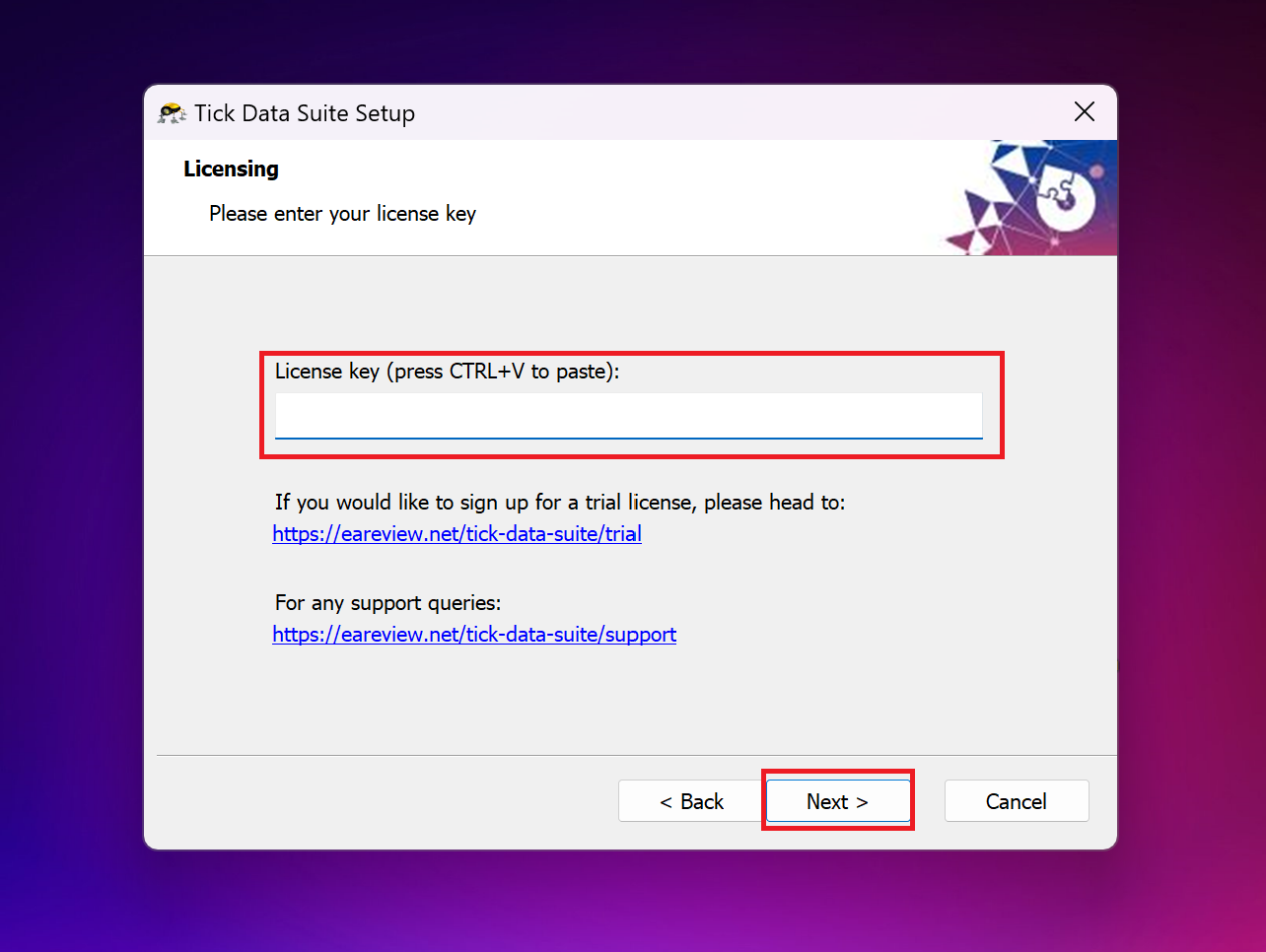
Step 1. Run the Tick Data Suite installer on the new computer, enter the license key when prompted and click Next:
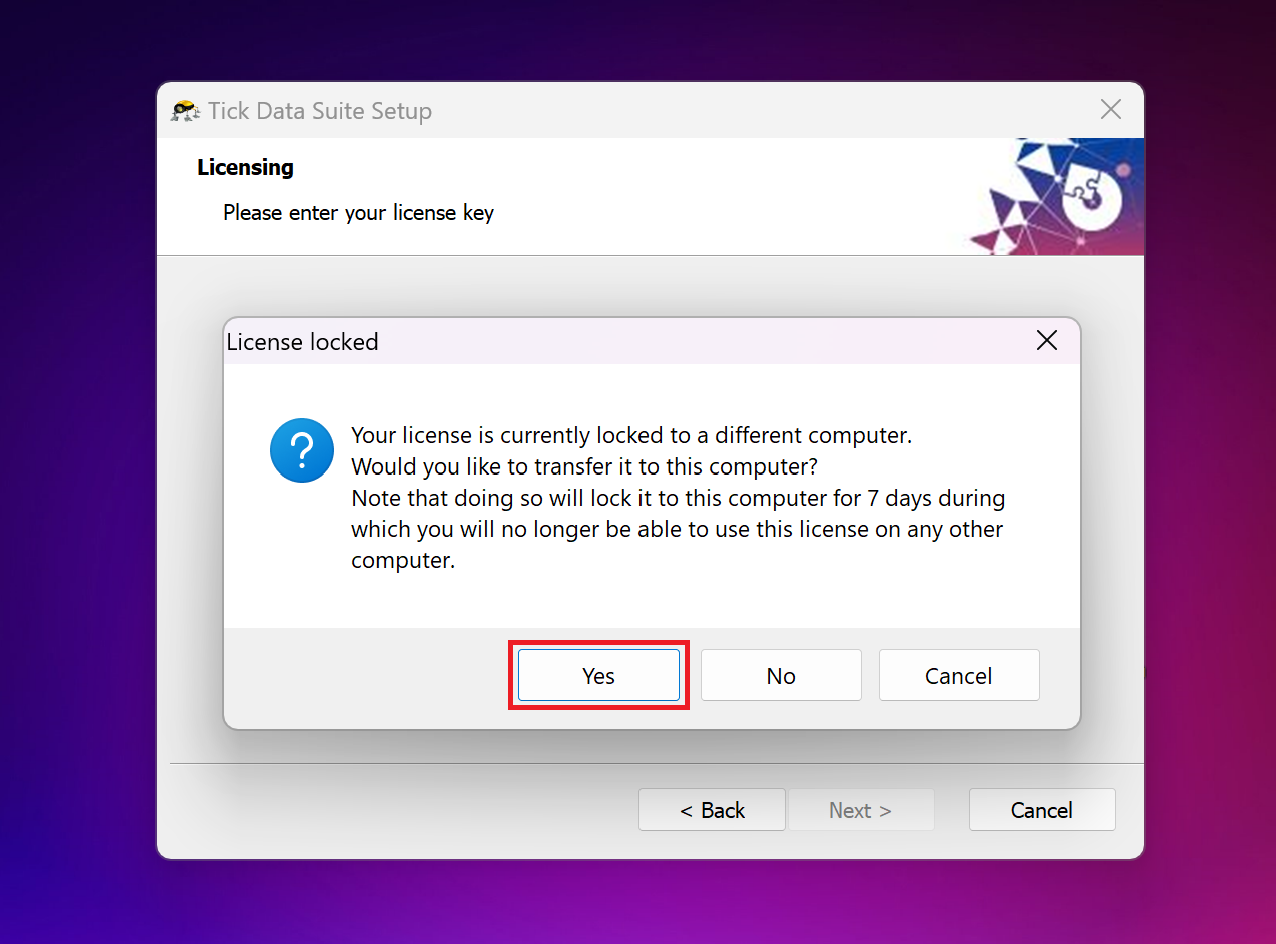
Step 2. If your license key has not been moved in the last 7 days you will encounter the message below. Click YES to move the license key to the new computer:
Existing Installation:
If you already have the Tick Data Suite installed, please follow the steps below:
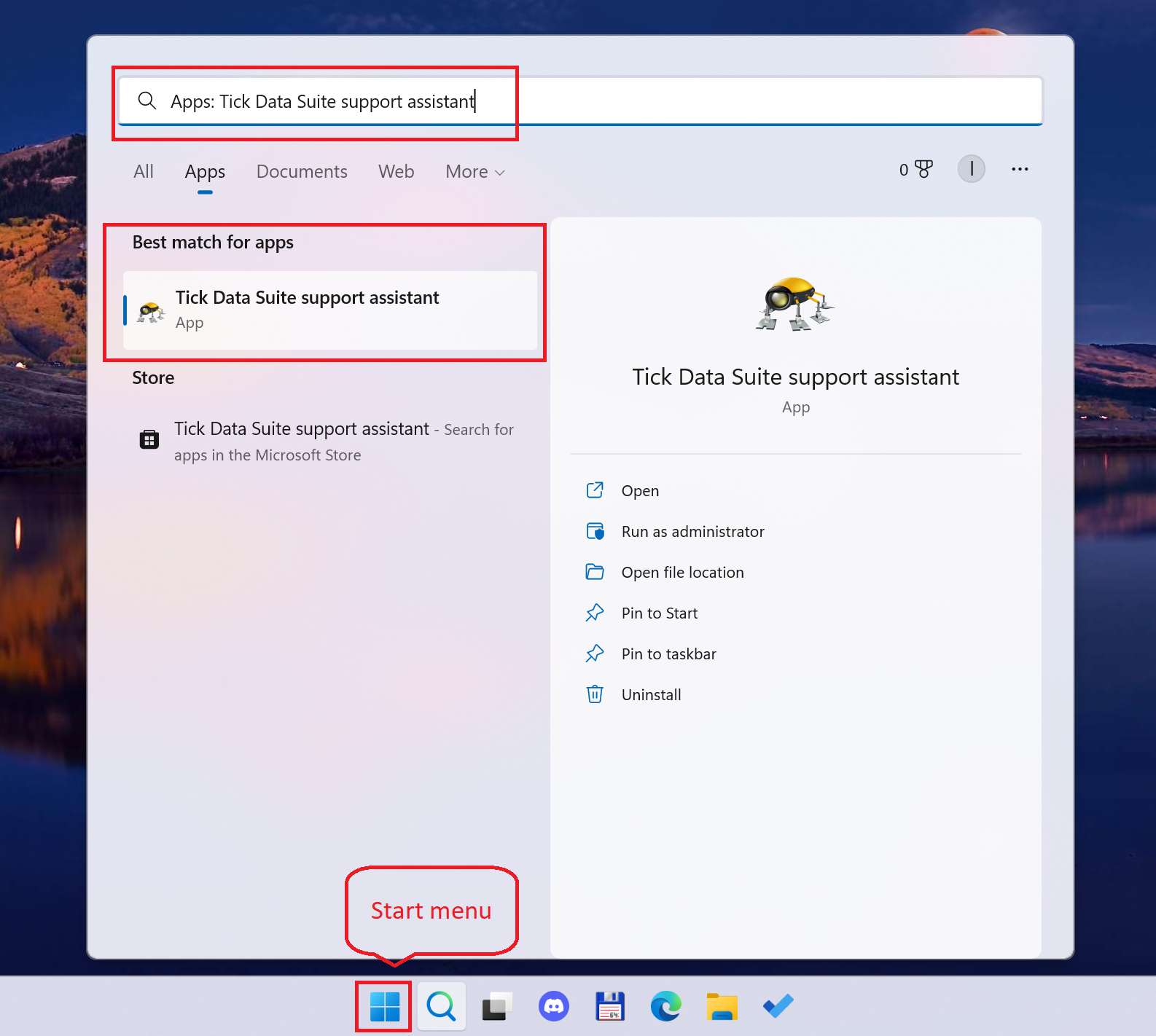
Step 1. Open the Tick Data Suite support assistant. You can find it by clicking on the Windows Start menu icon or by pressing the Windows key on your keyboard and typing "Tick Data Suite support assistant":
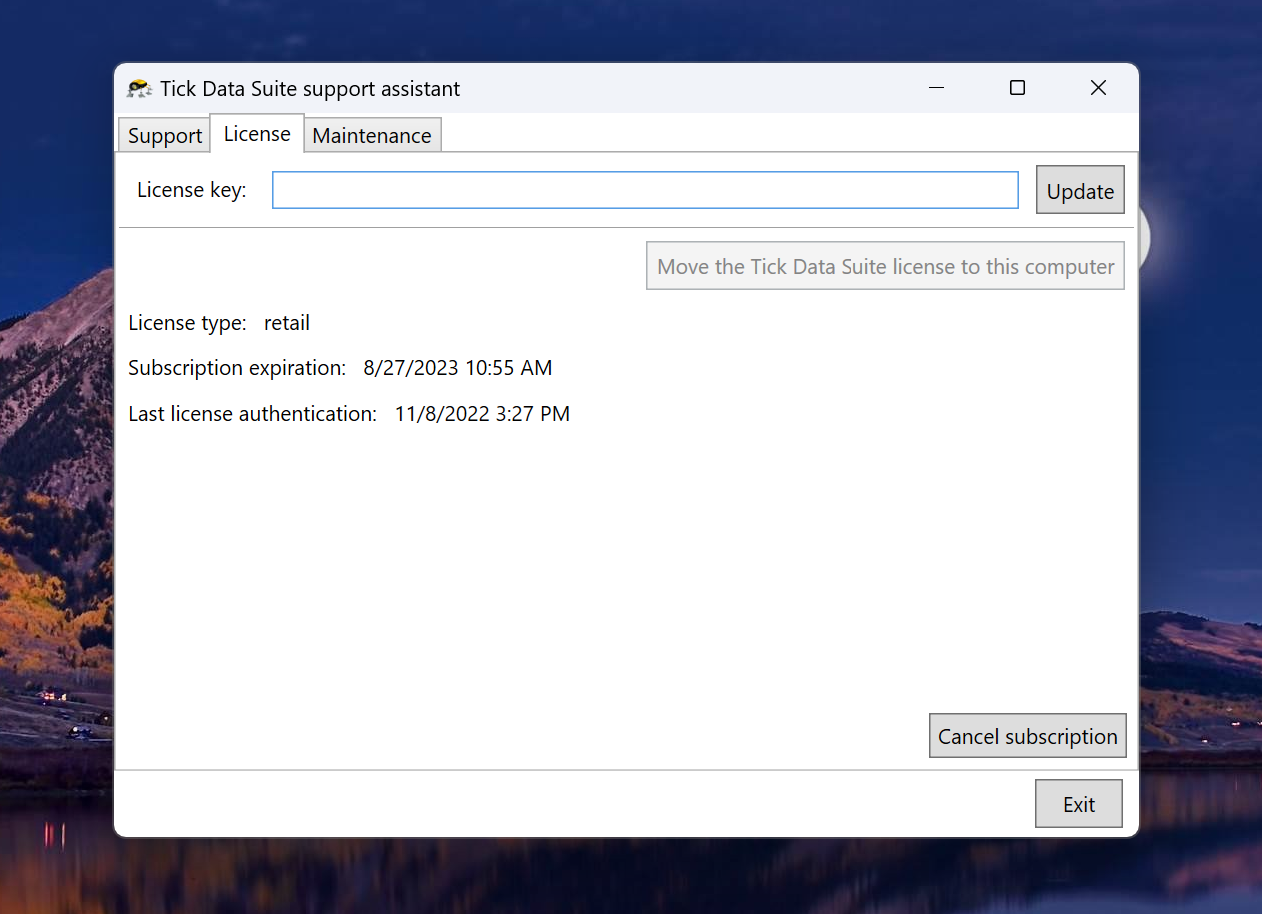
Step 2. Click on the License tab. Check if the key in the License key field is correct. Otherwise, delete the existing key and copy/paste the key you want to use. Click on the Update button:
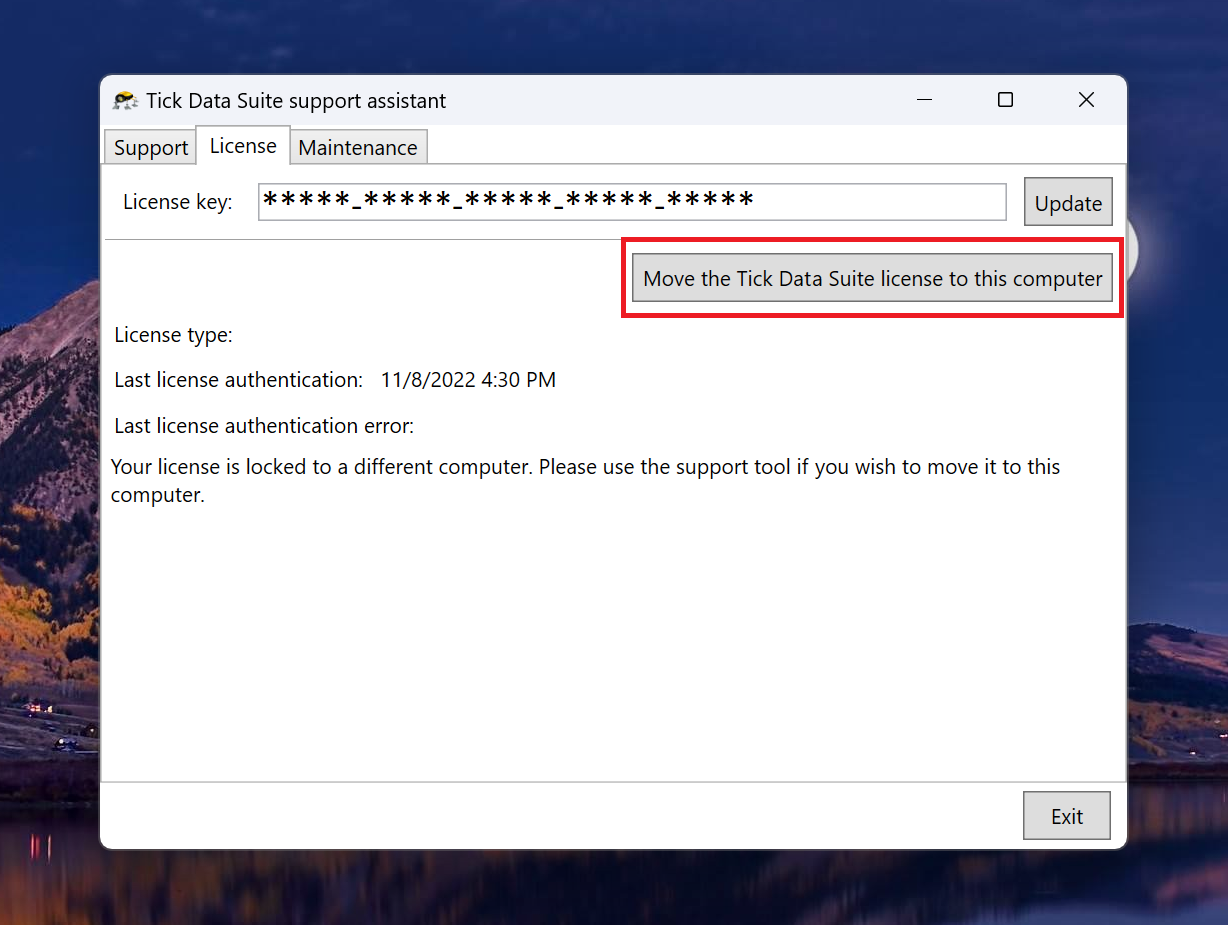
Step 3. Click the Move the Tick Data Suite license to this computer button:
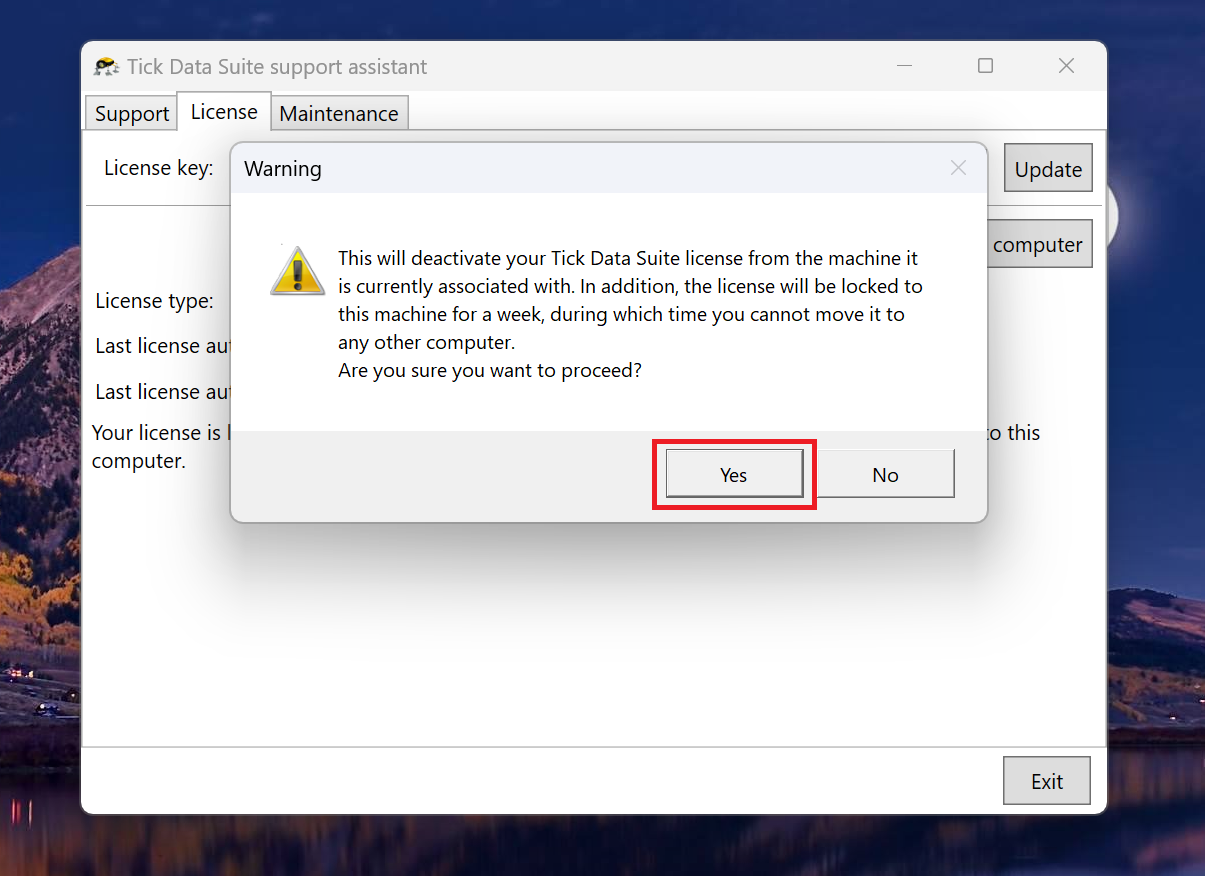
Step 4. You will get a pop-up message asking for your confirmation. Answer YES to move the license to this computer:
Step 5. If the move is successful, the Last license authentication field will display the current date and time.
Step 6. If the license cannot be moved yet, the Last license authentication field will display an error with the time you have left until the license can be moved.