
Linking MT5 custom symbols to tick data
Linking MT5 Symbols with Tick Data
Once your custom symbols exist in MT5, you tell the Tick Data Suite which tick data source should feed each one. This article covers the symbol linking workflow, including bulk and per-row configuration, rebuilding the cache, and cleaning up.
Prerequisites
- MT5 terminal connected to the Tick Data Suite (how →)
- At least one custom symbol created in MT5 (how →) — this step is mandatory; without custom symbols the association window will be empty
- Tick data downloaded (how →)
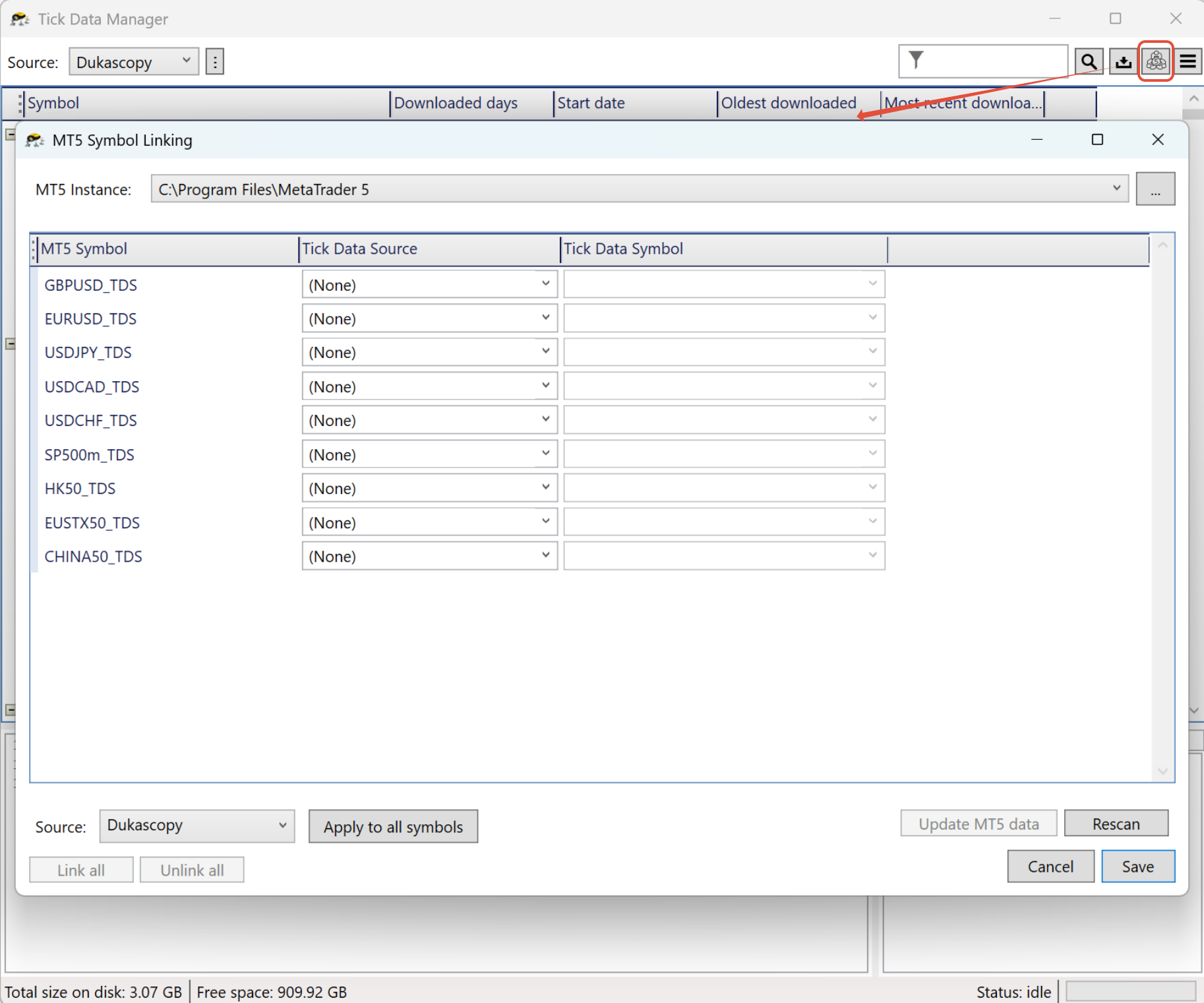
Open the symbol association window
The table below now lists every custom symbol from the selected MT5 terminal.
Fast path — all symbols from a single provider
If all your tick data comes from one provider (e.g. Dukascopy), this configures everything in about 10 seconds.
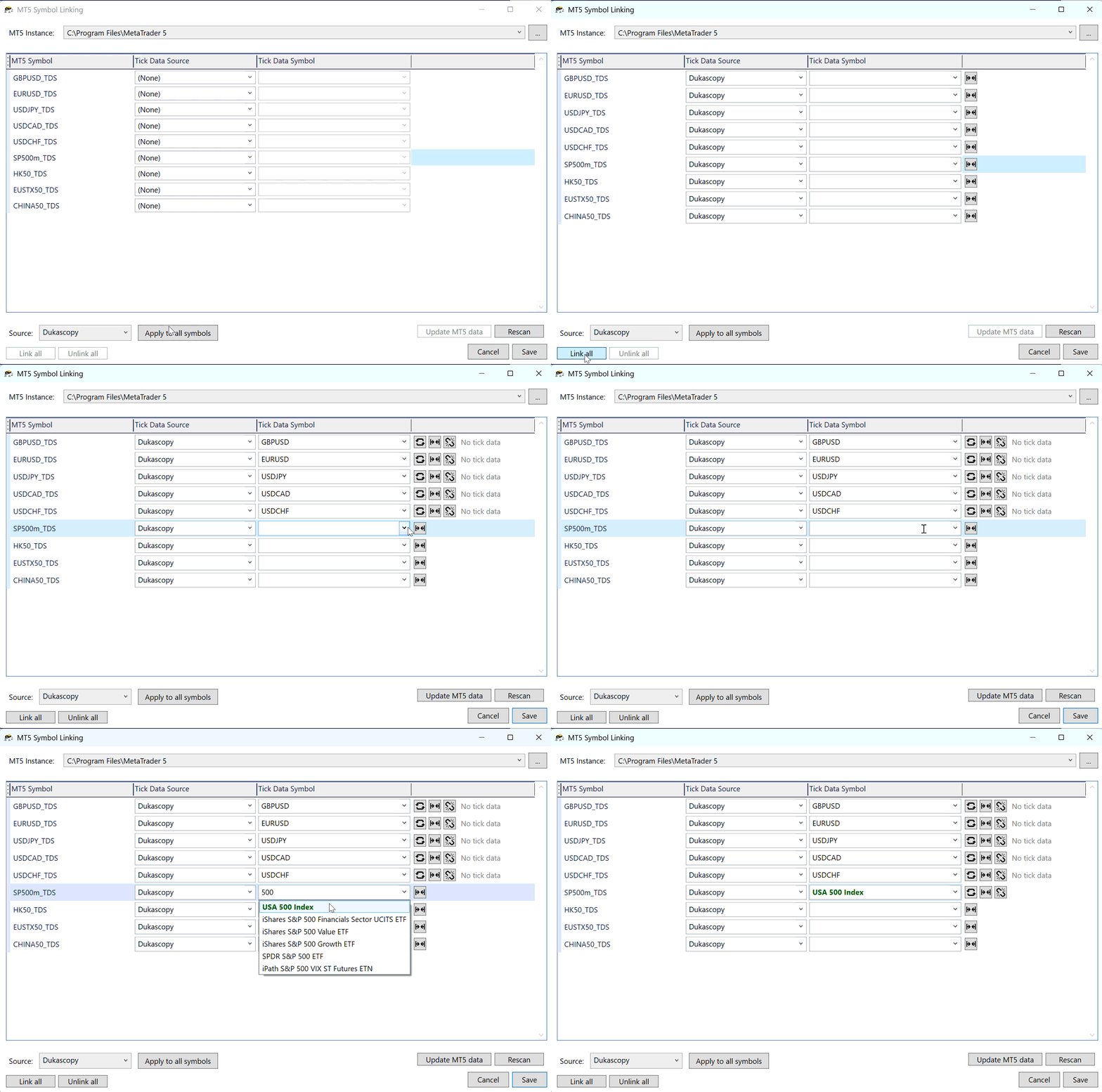
Standard Forex pairs (even with a _TDS suffix) will match instantly. Exotic or oddly-named symbols (like SP500m in the screenshot above) may be left unmatched — link them manually with the per-row method below.
Symbols that have existing tick data will be highlighted in green. For symbols that do not have tick data, No tick data will be displayed.
Per-row configuration
Best when you use different providers for different symbols, or when the fast path left some rows unmatched.
Symbols you don't care about can be left unconfigured — they continue to use whatever data MT5 already has.
What "Update MT5 data" does
It regenerates the virtual history and tick data files MT5 will read during a backtest. Click it after:
- Associating symbols for the first time
- Changing a symbol's source or tick data mapping
- Downloading new tick data and wanting it reflected in MT5 immediately
For a single-symbol regenerate (faster when you only touched one row), click the refresh icon on that row instead.
Automatic update prompt
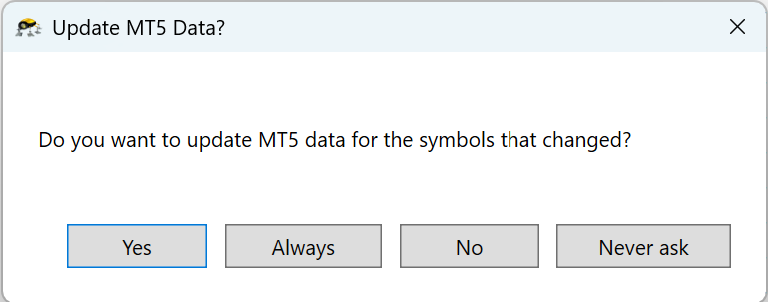
When closing the symbol association window after making changes, or after downloading new tick data, the Tick Data Suite prompts whether to update the MT5 cache:
| Button | Effect |
|---|---|
| Yes | Update the cache now (this time only). |
| Always | Update the cache now and enable automatic updates from now on — equivalent to enabling Automatically update cache in Settings → MT5. Future symbol changes, downloads, and timezone edits update the cache without prompting. |
| No | Skip the update this time. |
| Never ask | Skip the update and stop prompting in the future. The cache is only updated when explicitly clicking Update MT5 data. |
Cleaning up outdated symbols
Rows shown in red are custom symbols that no longer exist in MT5 (you deleted them from the Symbols window). Click the minus button on those rows to remove them.
Adding new custom symbols later
When you create more custom symbols in MT5 after the initial setup: